Domain Name System (DNS)
DNS configuration is vital to the functioning of the local network authentication (implemented with Kerberos since the Zentyal 3.0 version). The network clients query the SRV and TXT records of their local domain, to find servers with ticket authentication. As mentioned before, this domain is preconfigured to resolve Kerberos services since the installation. For additional information regarding directory services, check Domain Controller and Directory Services.
BIND [4] is the de facto DNS server on the Internet, originally developed at the University of California, Berkeley, and currently maintained by the Internet Systems Consortium. BIND version 9, rewritten from scratch to support the latest features of the DNS protocol is used by Zentyal’s DNS module.
| [4] | Bind9: http://www.isc.org/software/bind |
DNS cache server configuration with Zentyal
Zentyal’s DNS module always works as a DNS cache server for networks marked as internals. So, if you only want your server to cache DNS queries, simply enable the module.
Sometimes this DNS cache server might need to be queried from internal networks that are not directly configured in Zentyal. Although this case is quite rare, it may occur in networks with routes to internal segments or VPN networks.
When Zentyal’s DNS server is installed and enabled, Zentyal’s DNS client () first solver option will be pointed automatically to the local server, 127.0.0.1. In other words, it will always query the local DNS zones first if present.
If there are no ‘DNS forwarders’ configured in the menu, Zentyal’s DNS cache server will query root DNS servers directly to find out which authoritative server will solve the DNS request. Then it will store the data locally during the time period set in the TTL field. This feature reduces the time required to start every network connection, giving the users a sensation of speed and reducing the overall Internet traffic.
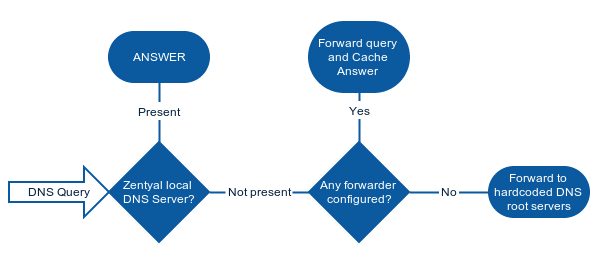
DNS query resolution flowchart
The search domain is basically a string that is added to the request in case a user defined string is unresolvable. The search domain is configured on the clients, but it can be provided automatically by DHCP so that, when the clients receive the initial network configuration, they can also receive the search domain. For example, your search domain could be foocorp.com, then, when a user tries to access the host example, as it is not present among its known hosts, the name resolution will fail, then the user’s operating system will automatically try to resolve example.foocorp.com.
In you have a tool for Domain Name Resolution, that shows the query details using dig of a DNS query to the server you have set in .
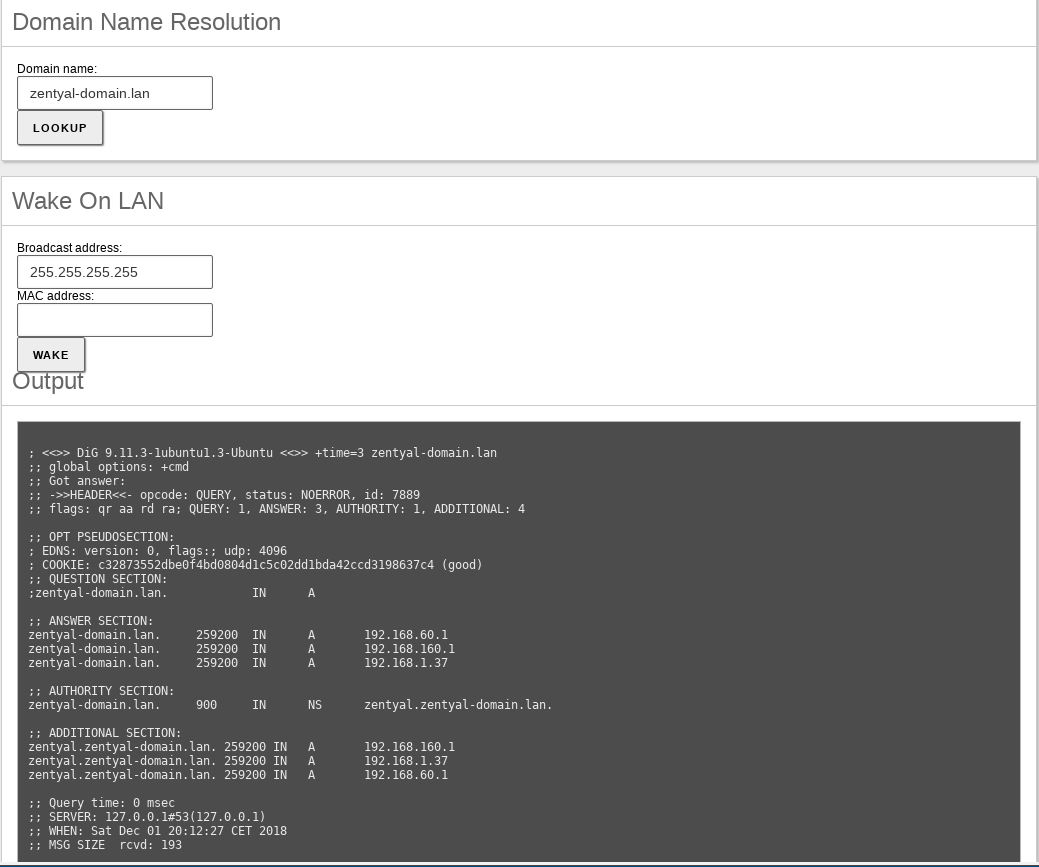
Domain name resolution using the local DNS cache
Transparent DNS Cache
Zentyal’s transparent DNS Cache gives you a way to force the use of your DNS server without having to change the clients’ configuration. When this option is enabled, all the DNS requests that are routed through your server are redirected to Zentyal’s internal DNS server. The clients have to use Zentyal as their gateway to make sure the requests will be forwarded. To have this option available, the firewall module must be enabled.
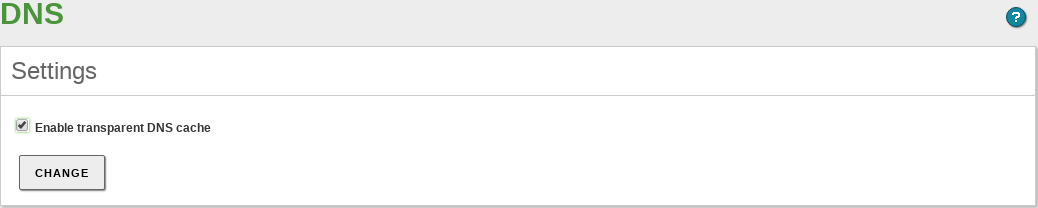
Transparent DNS cache
DNS Forwarders
The redirectors or forwarders are external DNS servers that will support your server. First your server will search in the local cache, among the registered domains and previously cached queries. In case there is no answer, it will query the redirectors. For example, the first time you query www.google.com, Zentyal’s DNS server will query redirectors and store the request in cache if the domain google.com is not registered to your server.
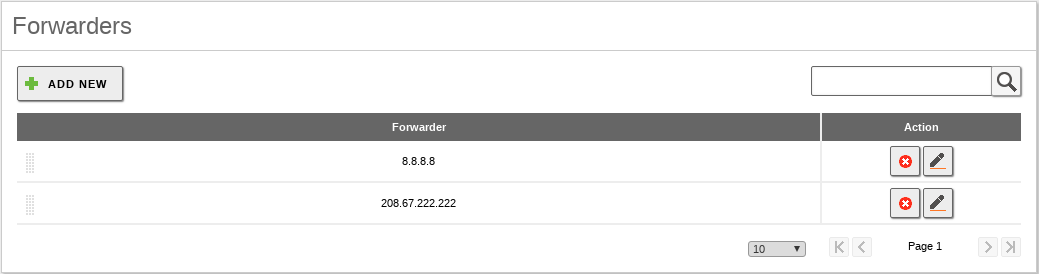
DNS Forwarders
In case forwarders are not configured, Zentyal’s DNS server will use the DNS root servers [5] to solve queries that are not stored.
| [5] | Root servers: http://en.wikipedia.org/wiki/Root_name_server |
Configuration of an authoritative DNS server with Zentyal
In addition to DNS cache, Zentyal can act as an ‘authoritative DNS server’ for a list of configured domains. As an authoritative server, it will respond to queries about these domains coming both, from internal and from external networks, so that not only local client, but anyone, can resolve these configured domains. Cache servers only answer to queries coming from internal networks.
The configuration of this module is done through the menu, where you can add as many domains and subdomains as required.
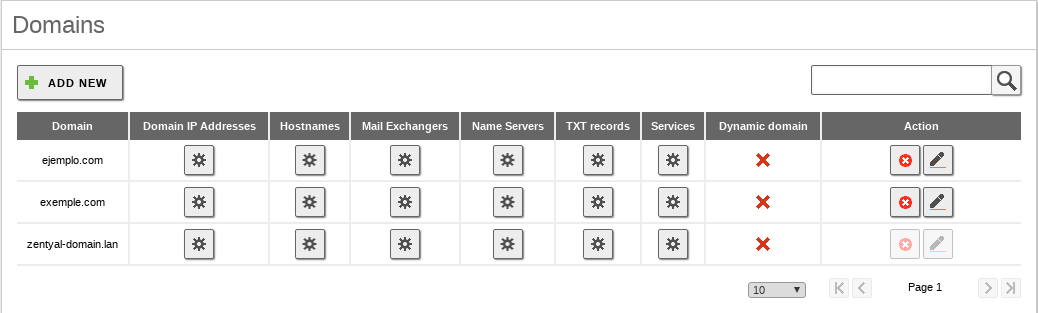
List of domains
Note the “local” domain configured automatically during the installation or later through the DNS wizard. This domain matches your directory domain and in its DNS entries you can find information about the hosts and ports required for user authentication. The “local” domain can be easily recognized since Zentyal doesn’t allow its direct removal. You can modify your “local” domain from System -> General. It is imperative to restart the server after this change.
You can have as many additional domains registered in your DNS as you wish. Those other domains can be removed or modified without the considerations applied to the “local” domain.
To configure a new domain, display the form by clicking on Add new. You can configure the Domain name from here.
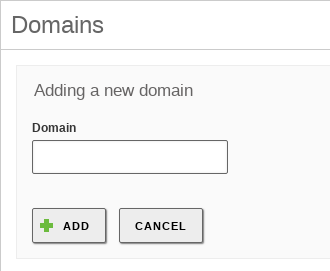
Adding a new domain
You will see that within the domain you can configure different register sections. In the first place, the IP Addresses of the domain. A typical case is to add all Zentyal local IP addresses as IP addresses of the domain.
Once the domain has been created, you can define as many host names (Type A) as required, within the table Hostnames. Zentyal will automatically configure reverse resolution for each one of these names. Moreover, you can define as many Alias as necessary for each name. Again, you can associate more than one IP address to your hostname. This can help the clients to balance between different servers, for example, two replicated LDAP servers with the same information.
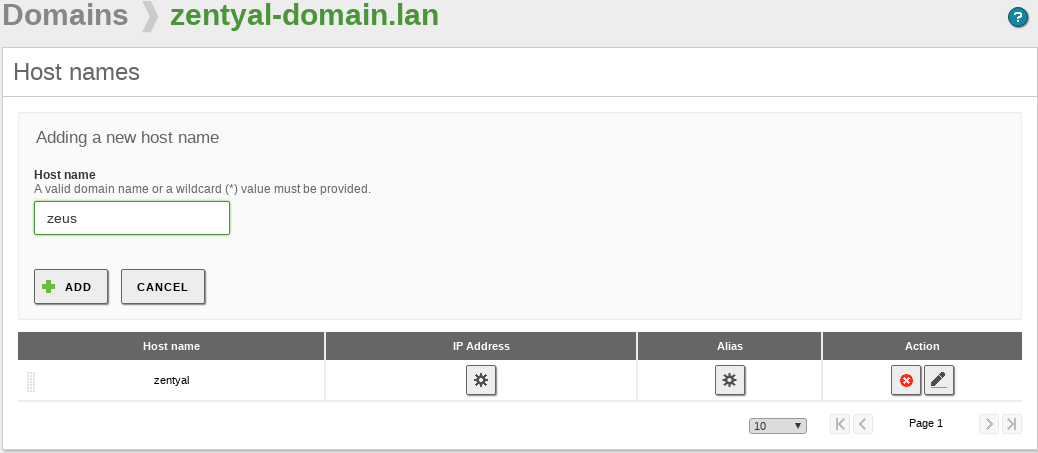
Adding a host
Normally, the names point to the host where the service is running and the aliases to the services hosted. For example, the host amy.example.com has the aliases smtp.example.com and mail.example.com for mail services and the host rick.example.com has the aliases www.example.com and store.example.com, among others, for web services.
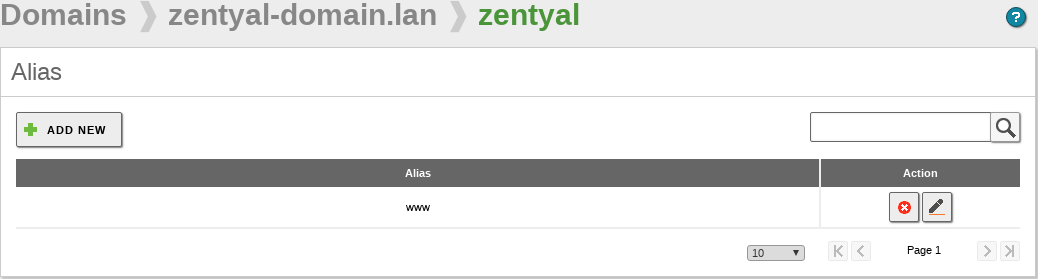
Adding a new alias
In the corresponding DNS record, you can also define the mail servers in charge of receiving the messages for each domain. In Mail exchangers you will choose a server from the Host name list or an external list. Using the Priority, you can determine the server other servers will try to deliver messages first. If the preferred server fails, the next one in the list will be queried.
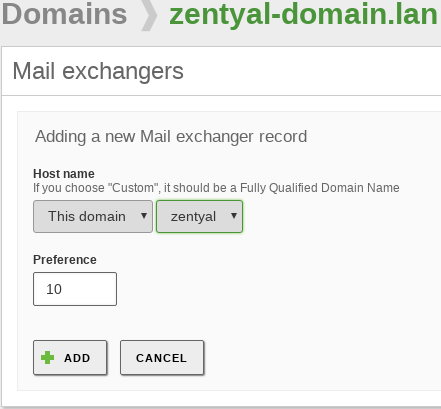
Adding a new mail exchanger
It is also possible to set NS records for each domain or subdomain using the table Name servers.
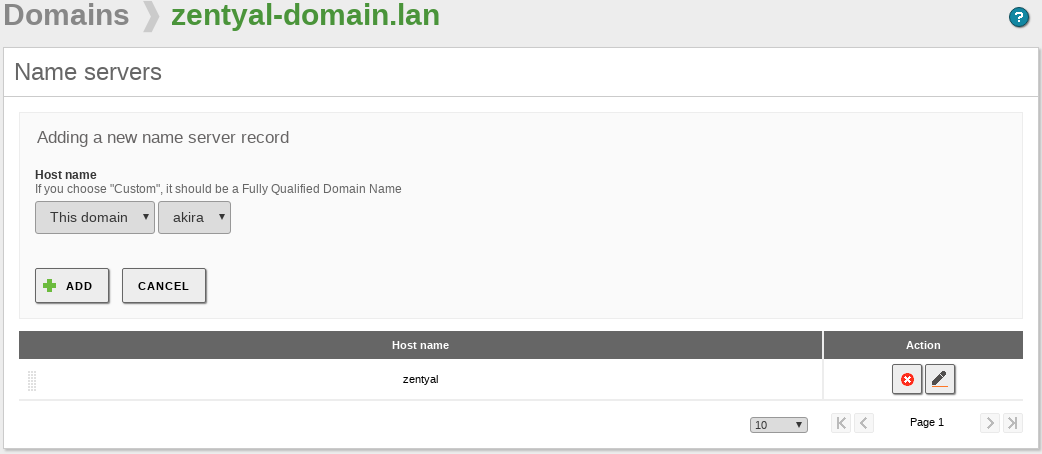
Adding a new name server
The text records are DNS registers that will offer additional information about a domain or a hostname using plain text. This information could be useful for human use or, more frequently, to be consumed by software. It is extensively used in several anti-spam applications (SPF or DKIM).
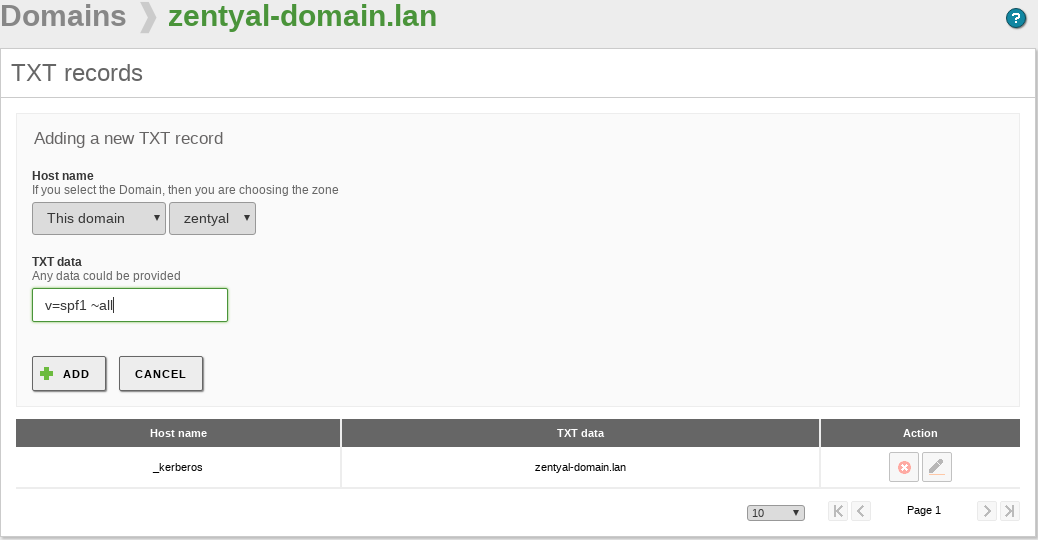
Adding a text record
To create a text record, go to the field TXT records of the domain. You can choose whether this record is associated with a specific hostname or the domain and its contents.
It is possible to associate more than one text record to each domain or hostname.
You can also add Services to a domain, with information about available services and the hosts providing them. To access the list of Services available in the domains, go to the field Services of the domain list. In each Service record you can configure the Service name and its Protocol. You can identify the host that will provide the service with the fields Target and Target port. To increase the availability of the service and/or to balance the load, you can define more than one record per service. In this case the fields Priority and Weight will help to choose the server to use. The lower the Priority value, the greater the chance of being chosen. When two machines have the same priority, the weight will be used to determine which machine will receive the higher workload. The ‘XMPP’ protocol, used mainly for instant messaging, uses these DNS records extensively. Kerberos also needs them for distributed user authentication in different services.
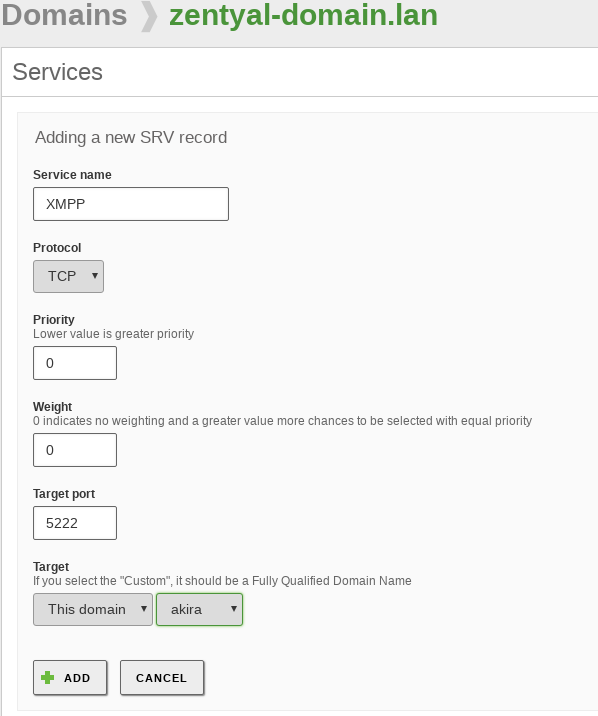
Adding a service record