Time synchronization service (NTP)

The NTP (Network Time Protocol) protocol was designed to synchronize the clocks in PCs in an unreliable network with jitter. This service listens on port 123 of the UDP protocol. It is designed to withstand the effects of jitter.

It is one of the oldest protocols of the Internet still in use (since before 1985). NTP version 4 can reach a precision of up to 200 µs or greater if the clock is in the local network. There are up to 16 levels defining the distance of the reference clock and its associated precision. Level 0 is for atomic clocks that are not connected to the network but to another level 1 computer with RS-232 serial connection. Level 2 are the computers connected via NTP to those of a higher level and are normally offered by default in the most common operating systems, such as GNU/Linux, Windows or MacOS.

NTP server configuration with eBox

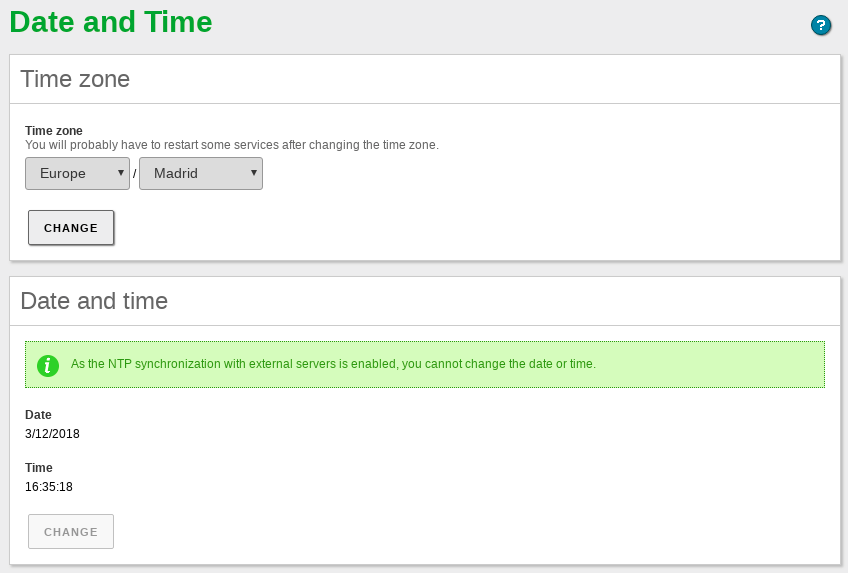
To configure eBox to use the NTP architecture [1], eBox must first be synchronized with an external server of a higher level (normally 2) offered via System ‣ Date/Time. A list of these can be found in the NTP pool (pool.ntp.org), which is a dynamic collection of NTP servers that voluntarily give their clients a relatively precise time over the Internet.

[1]NTP public service project http://support.ntp.org/bin/view/Main/WebHome.
_images/01-ntp.png

Once eBox has been synchronized as an NTP client [2], eBox can also act as an NTP server with a globally synchronized time.

[2]eBox uses ntpdate to set the date the first time, once the date is set it uses ntpd to remain synchronized. http://www.ece.udel.edu/~mills/ntp/html/

Practical example

Enable the NTP service and synchronize the time of your host using the command ‘ntpdate‘. Check that both eBox and the client host are set to the same time.

  1. Action: Access eBox, enter Module status and enable the ntp module by marking the checkbox in the Status column. This will show the changes to be made to the system. Allow the operations by clicking on the Accept button.

    Effect:

    The Save changes button has been enabled.

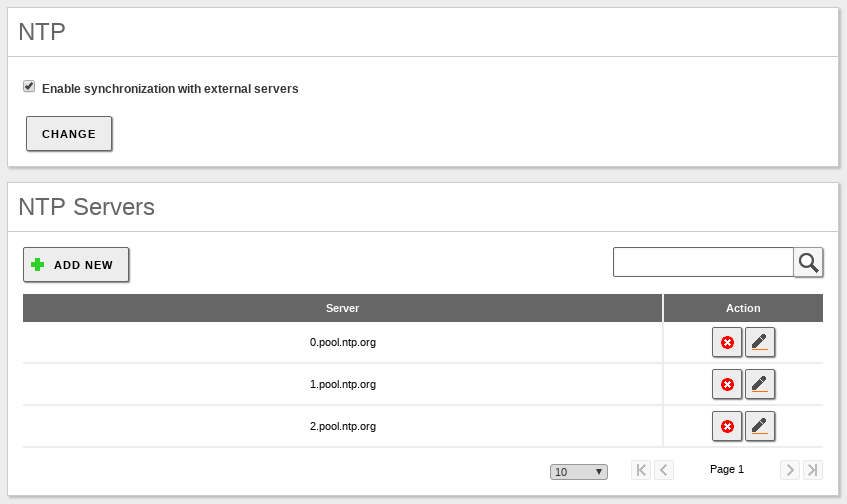
  2. Action: Access the System ‣ Date/Time menu. In the Synchronization with NTP servers section, select Enabled and click on Change.

    Effect:

    The option to manually change the date and time is replaced by fields to enter the NTP servers with which to synchronize.

  3. Action: Save the changes.

    Effect:

    eBox displays the progress while the changes are being applied. Once this is completed, it notifies the user.

    Your eBox host will act as an NTP server.

  4. Action: Install the ntpdate package in your client host. Run the command ntpdate <eBox_ip>.

    Effect:

    The time on the host will have been synchronized with that of the eBox host.

    You can check this by running the date command on both hosts.