The Virtual Private Networks were designed both to allow secure access to remote users to the corporate network and secure interconnection of geographically distant networks.
A frequent situation is where remote users need to access resources located in the company local network, but those users are outside the facilities and cannot connect directly. The obvious solution is to allow the connection through the Internet. This would create security and configuration problems, which can be resolved through the use of virtual private networks.
The solution offered by a VPN (Virtual Private Network) to this problem is the use of encryption to only allow access to authorized users (hence the private adjective). And to ease the use and configuration, connections seem to be as if there were a network between the users and the local network (hence the virtual).
The VPN’s usefulness is not limited to the access of remote users; a organization may wish to interconnect networks that are located in different places. For example, networks located in different cities. Some time ago, to solve this problem dedicated data lines were hired, but this service was expensive and slow to deploy. Later, the advance of the Internet provided a ubiquitous and cheap, but insecure, medium. And again, the security and virtualization features of the VPN were an appropriate response to this problem.
In this regard, eBox Platform provides two modes of operation. It can work as a server for remote users and as a server and client for the connection between two networks.
The VPN used by eBox to ensure data privacy and integrity uses SSL as cypher technology. The SSL technology is used widely since a long time so we could reasonably trust its security. However, all cypher schemes have the problem of how to distribute the keys to their users without interception by third parties. In the VPN context, this step is required when a new participant joins the virtual network. The adopted solution is the use of a public key infrastructure (PKI). This technology allows the use of the key in a insecure medium, like the Internet, without allowing the interception of keys by anyone who snoops the communication.
PKI is based in that each participant generates two keys: a public key and a private key. The public one can be distributed publicly and the private one must remain secret. Any participant who wants to cypher a message can do it with the public key of the recipient but the message can only be deciphered with the private key of the recipient. As this key is kept secret, it is ensured that only the recipient can read the message. However, this solution creates a new problem. If anyone could present a public key, how we can guarantee that a participant is really who he claims to be and is not impersonating another identity? To solve this problem, certificates were created. [1]
| [1] | There is a lot of information about public key encryption. You can begin here: http://en.wikipedia.org/wiki/Public-key_encryption |
The certificates use another PKI feature: the possibility of signing files. The private key is used to sign a file. The signature can be checked by anyone using the public key. A certificate is a file that contains a public key, signed for someone that is trusted. This trusted participant is used to verify identities and is called Certification Authority (CA).
eBox Platform has integrated management of the Certification Authority and the life cycle of the issued certificates for your organization. It uses the OpenSSL [2] tools for this service.
| [2] | OpenSSL - The open source toolkit for SSL/TLS <http://www.openssl.org/>. |
First of all, you need to generate the keys and issue the certificate of the CA itself. This step is needed to sign new certificates, so the remaining features of the module will not be available until the CA keys are generated and its certificate, which is self signed, is issued. Note that this module runs unmanaged and you don’t need to enable it in Module Status.

Go to Certification Authority ‣ General and you will find the form to issue the CA certificate after generating automatically the key pair. It is required to fill in the Organization Name and Days to expire fields. When setting this duration you have to take into account its expiration will revoke all certificates issued by this CA, stopping all services depending on those certificates. It is possible to add also these optional fields to the CA certificate:
City
State

Once the CA has been created, you will be able to issue certificates signed by the CA. To do this, use the form now available at Certification Authority ‣ General. The required data are the Common Name of the certificate and the Days to expire. This last field sets the number of days that the certificate will remain valid and the duration cannot surpass the duration of the CA. In case we are using the certificate for a service server like it could be a web server or mail server, the Common Name of the certificate should match the hostname or domain name of that server. Anyway, you could set any Alternative Subject Names [3] for the certificate in order to, for example, set any other common name for HTTP virtual hosts [4] or an IP address or even a mail address to sign e-mail messages.
| [3] | For more information about subject alternative names, visit http://www.openssl.org/docs/apps/x509v3_config.html#Subject_Alternative_Name |
| [4] | For more information about HTTP virtual hosts, check out Virtual domains section for details |
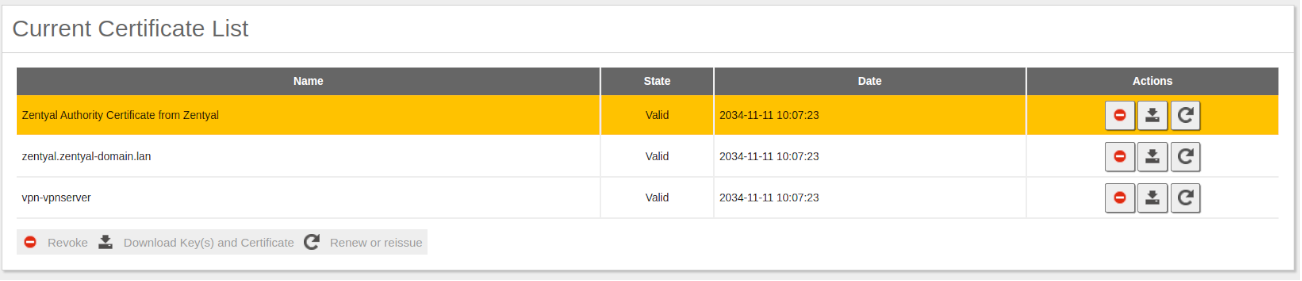
When the certificate is issued, it will appear in the list of certificates and it will be available to eBox services that use certificates and to external applications. Furthermore, several actions can be applied to the certificates through the certificate list:
If you renew a certificate, the current certificate will be revoked and a new one with the new expiration date will be issued along with the key pair.

If you revoke a certificate you won’t be able to use it anymore as this action is permanent and you can’t go backwards. Optionally you can select the reason of the certificate revocation:
unspecified
certificateHold

If you renew the CA certificate then all the certificates will be renewed with the new the CA. The old expiration date will be kept, if this is not possible it means that the old expiration date is a later date than the new CA expiration date, in this case the expiration date of the certificate will be set to the expiration date of the CA.
When a certificate expires all the modules are notified. The expiration date of each certificate is automatically checked once a day and every time you access the certificate list page.

On Certification Authority ‣ Services Certificates we can find the list of eBox modules using certificates for its secure services. By default, these are generated by each module, but if we are using the CA we can replace these self signed certificates with ones issued by our organization CA. You can define for each service the Common Name of the certificate and if there is a certificate with that Common Name available, the CA will issue one. In order to set these key pair and signed certificate to the service you have to Enable the certificate.
Every time a certificate is renewed is pushed again to the eBox module but you need to restart the service to force the new certificate usage.
Create a Certification Authority which will be valid for a year, then create a certificate called server and two client certificates called client1 and client2.
Action:
Go to Certification Authority ‣ General. In the form called Create Certification Authority Certificate, fill in the fields Organization Name and Days to expire with reasonable values. Press Create to generate the Certification Authority.
- Effect:
The key pair of the Certification Authority is generated and its certificate will be issued. Our new CA will be displayed in the list of certificates. The form for creating the CA will be replaced by another one intended to issue normal certificates.
Using the form Issue a New Certificate to issue certificates, enter server as Common Name and then, in Days to expire, a number of days less than or equal to the one you entered for the CA certificate. Repeat these steps with the names client1 and client2.
The new certificates will appear in the list of certificates, ready to be used.
The software selected by eBox to create VPNs is OpenVPN [5]. OpenVPN has the following advantages:
- Authentication using public key infrastructure.
- Encryption based on SSL technology.
- Clients available for Windows, MacOS X and Linux.
- Code that runs in user space, without the need to modify the network stack (as opposed to IPSec).
- Possibility to use network applications in a transparent way.
| [5] | OpenVPN: An open source SSL VPN Solution by James Yonan http://openvpn.net. |
eBox can be configured to support remote clients (familiarly known as road warriors). That is, an eBox machine can work as a gateway and OpenVPN server, allowing clients on the Internet (the road warriors) to connect to the network via the VPN service and access the local area network.
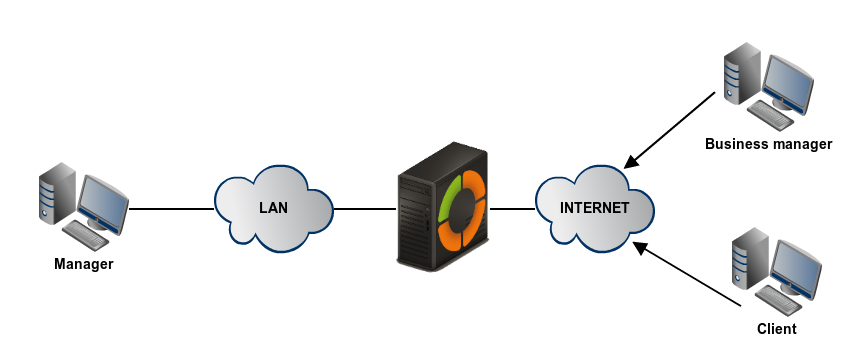
The following figure can give a more accurate view of the scenario:
The goal is to connect the client number 3 with the other two remote clients (1 and 2) and also connect these two among themselves.
To do this, we need to create a Certification Authority and certificates for the two remote clients. Note that you also need a certificate for the OpenVPN server itself, however, this certificate is automatically created when you add a new OpenVPN server. Here, the eBox machine also acts as a CA.
Once we have the certificates, we should configure the OpenVPN server in eBox using Create a new server. To only parameter that you need to create a working OpenVPN server is its name. An OpenVPN server needs more parameters to work properly. eBox makes this easy and will try to automatically set valid parameters for you.
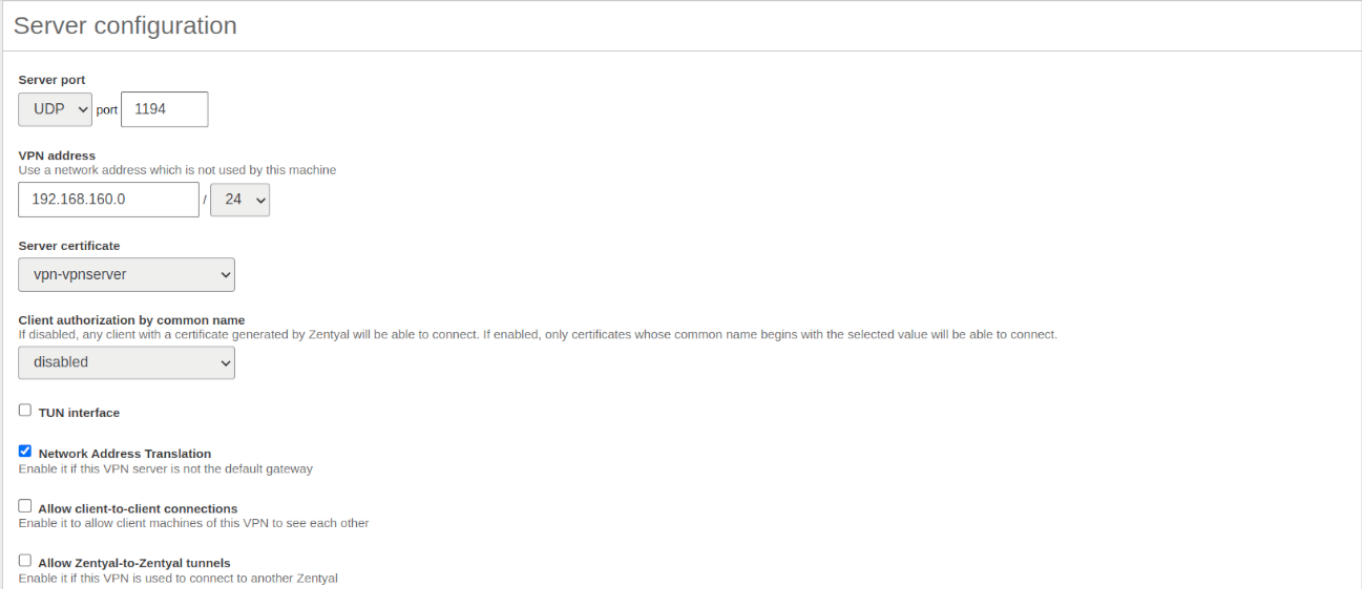
The following configuration parameters will be added by eBox, feel free to adapt them to your needs: a port/protocol pair, a certificate ( eBox will create a certificate using the OpenVPN server’s name) and a network address for the VPN. Addresses belonging to the VPN network are assigned to the server and the clients. In case you need to change the network address and to avoid conflicts, you have to make sure that the network address is not used in any other part of your network. Furthermore, the local networks, i.e. the networks where the network interfaces are attached to, are advertised through the private network.
The OpenVPN server will be listening on all the external interfaces. Therefore, we have to mark at least one of our interfaces as external via Network -> Interfaces. In this scenario only two interfaces are needed, the internal one for the LAN and the external one for the Internet. You can configure the server to listen also on internal interfaces, activating the option Network Address Translation (NAT), but you can ignore it for the moment.
If you want the clients to connect to each other using their VPN addresses, you have to activate the option Allow connections between clients.
You can leave the rest of the options with their defaults.

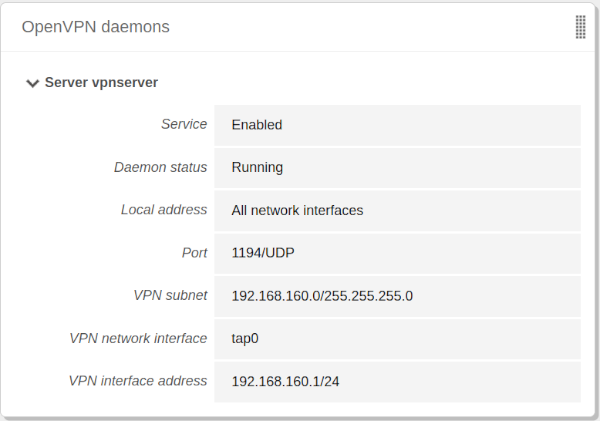
After creating the OpenVPN server you have to enable the service and save the changes. Subsequently, you should check in Dashboard that the VPN service is running.
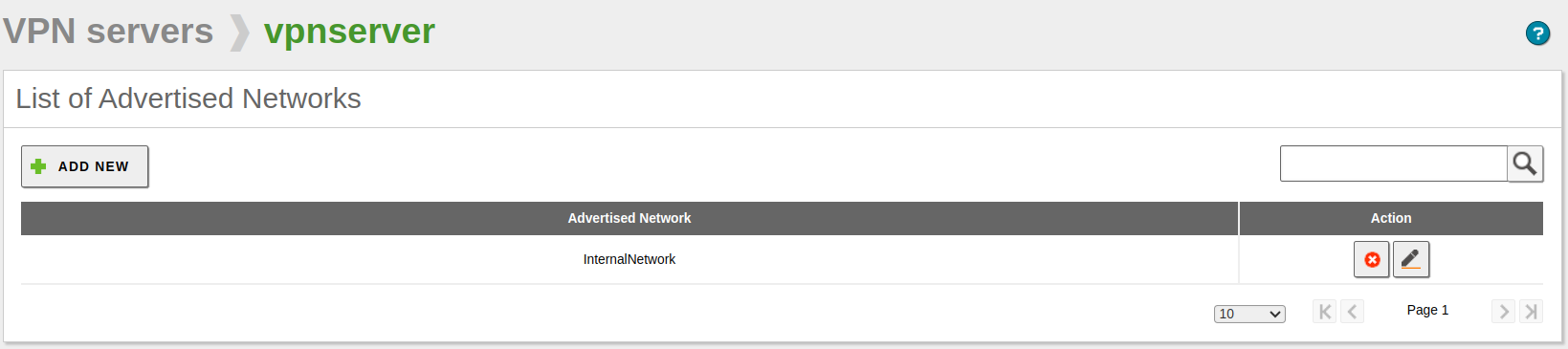
After that, you may want to advertise networks through Advertised networks configuration for the VPN server. These networks will be accessible by OpenVPN authorized clients. Note that eBox will advertise all your local networks by default. Obviously, you can remove or add routes at your leisure. In our example scenario, the local network has been added automatically to make visible the client number 3 to the two other clients.
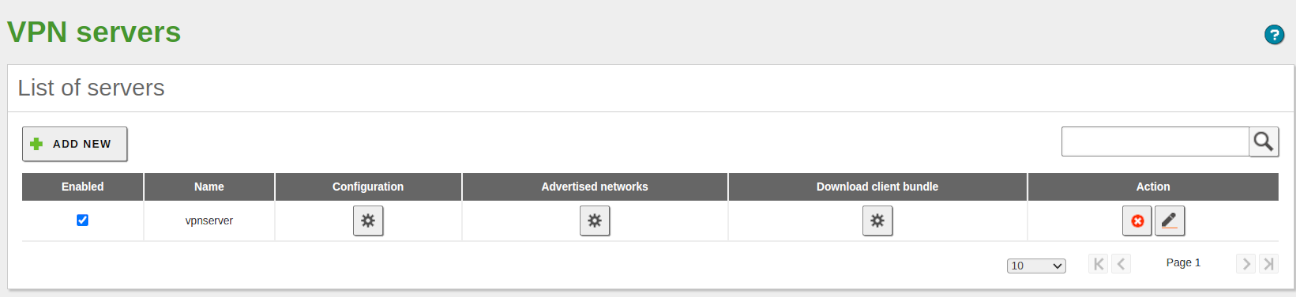
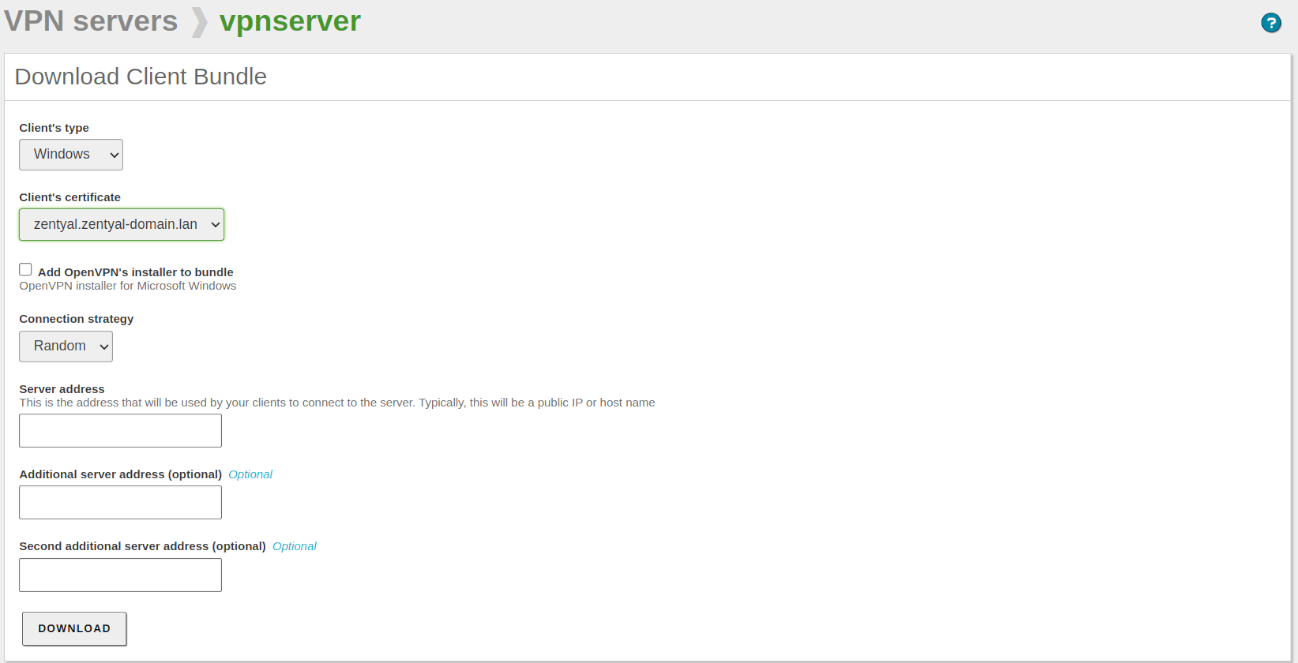
Once done, it’s time to configure the clients. The easiest way to configure an OpenVPN client is using the bundles provided by eBox. These are available in the table in VPN -> Servers, by clicking the icon on the Download client bundle column. There are bundles for two types of operating system. If you are using MacOS X or GNU/Linux, you have to choose Linux as type. When a bundle is created, the certificates that will be given to the client are included, and the external IP address to which VPN clients have to connect is set. If the selected system is Windows, an OpenVPN for Win32 installer is also included. The configuration bundles should be downloaded by the eBox administrator and he is responsible for distributing them to the clients in a proper and secure way.

A bundle includes the configuration file and other necessary files to start a VPN connection. For example, in Linux, simply extract the archive and execute it, within the newly created directory, using the following command:
openvpn --config filename
Now you have access to the client number 3 from the two remote clients. Bear in mind that the eBox DNS service will not work through the private network unless you configure the remote clients to use eBox as name resolver. That is why you cannot access the services of the hosts on the LAN by name, you have to do it by IP address. That also applies to the NetBIOS [6] service when accessing Windows shared resources, to browse the shared resources from the VPN, you must explicitly allow the broadcast traffic provided by the SMB/CIFS server.
| [6] | For more information about file sharing, see section File sharing service and remote authentication |
To enable the remote clients to connect between themselves, you need to activate the Allow client-to-client connections option in the VPN server configuration. To verify that the configuration is correct, look at the routing table of the client and check that the new networks were added to the tapX virtual interface.
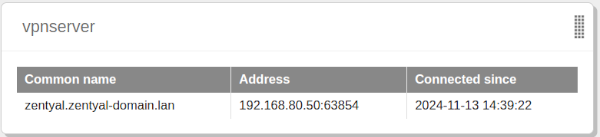
The current users connected to the VPN service are displayed in eBox Dashobard.
This example will configure a VPN server. A client on a computer located on a external network is going to be configured. Once connected it to the VPN, it will access another host in the local network, which is only accessible from the server through an internal interface.
To do this:
Access the eBox interface, go to Module Status and activate the VPN module by checking the box on the Status column.
eBox requests permission to perform certain actions.
Read about the actions that are going to be performed and grant permission to do them.
Save Changes button is activated.
Access the eBox web interface, enter the VPN -> Server section, click on Add new. A form with the fields Enabled and Name will appear. Enter a name for the server and leave it disabled until it is configured correctly.
The new server appears in the list of servers.
Click on Save Changes and accept all the changes.
The server is active, you can verify its status in the Dashboard.
To simplify the configuration of the client, download the configuration bundle. To do this, click the icon on the Download client bundle column. Fill in the configuration form with the following options:
Client type: select Linux, as it is the client OS.
- Client certificate: select client1. If
This certificate is not created, create it following the instructions from the previous example.
- Server address: enter here
the address that the client has to use to reach the VPN server. In this scenario, this address will be the one for the external interface connected to the same network as the computer client.
Once the form is completed, a bundle file for the client will be downloaded. It will be a compressed file in .tar.gz format.
Configure the client computer. For this, decompress the bundle in a directory. Note that the bundle contains files with the necessary certificates and a configuration file with the .conf extension. If there have been no mistakes in the steps earlier, you have all the necessary configuration and you only have to launch the program.
To launch the client run the following command within the directory:
openvpn --config [ filename.conf ]
When launching the command in a terminal window the actions will be printed on it. If everything is correct, once the connection is ready Initialization Sequence Completed will appear on the terminal; otherwise error messages will appear to help you diagnose the problem.
Before checking if there is a connection between the client and the computer on the private network, you have to be sure that the latter has a return route to the VPN client. If you are using eBox as the default gateway, there will be no problem. Otherwise you will need to add a route to the client.
First you have to check if there is connection by using the ping command. Run the following command:
ping -c 3 [ another_computer_ip_address ]
To verify that there is not only communication, but also access to the resources of another computer, launch a remote console session. You can do it with the following command from the client computer:
ssh [ another_computer_ip_address ]
After accepting the identity of the computer and entering the user and the password, you will access the console of the remote computer as if it were physically on your local network.
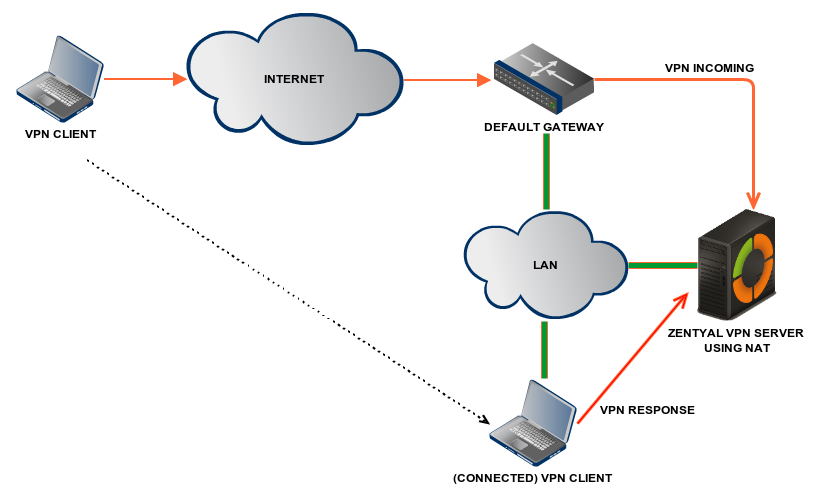
If you want to have a VPN server that is not the gateway of your LAN, i.e. the machine has no external interfaces, then you need to activate the Network Address Translation option. As this is a firewall feature, you have to make sure that the firewall module is active, otherwise you will not be able to activate this option. With this option, the VPN server will act as a representative of VPN clients within the network. In fact, it will be a representative of all the advertised networks, and it will receive the response packets and subsequently forward them through the private network to the clients. This situation is better explained with the following figure:
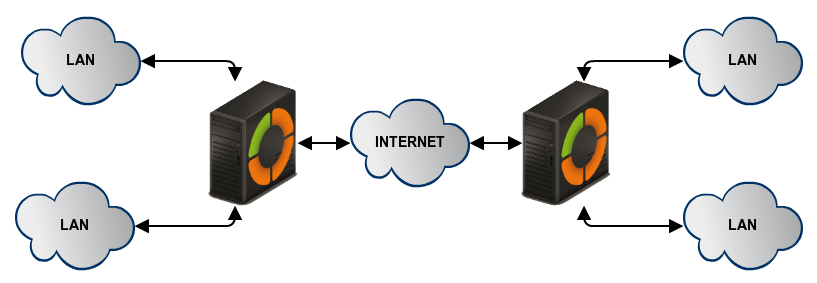
In this scenario there are two offices in different networks that need to be connected via a private network. To do this, eBox is used as gateway in both networks. One eBox will act as OpenVPN client and another as server. The following figure attempts to clarify the situation:
The goal is to connect client 1 on LAN 1 to client 2 on LAN 2, as if they were in the same network; therefore, you first have to configure an OpenVPN server as shown in Practical example B.
However, you need to make two small changes. First, enable the Allow eBox-to-eBox tunnels option to exchange routes between eBox machines. Then enable password for the eBox-to-eBox tunnel to have a more secure connection environment. You have to bear in mind that you have to add the address of the LAN 1 in Advertised networks.
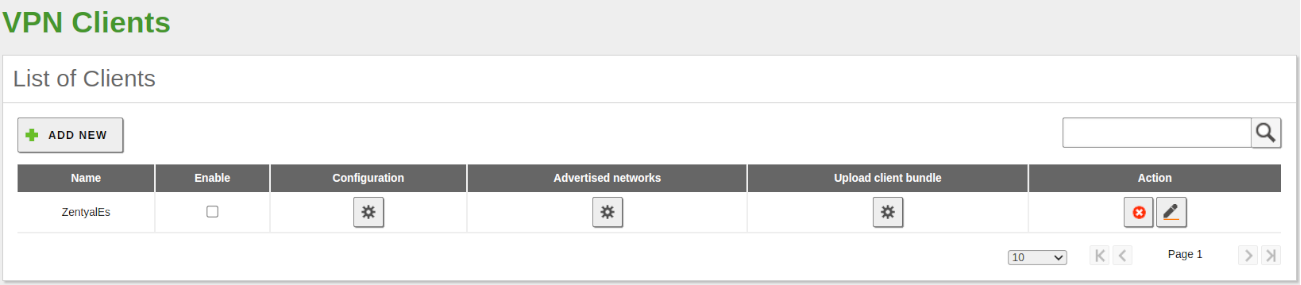
To configure eBox as an OpenVPN client, you can do it through VPN -> Clients. You must give a name to activate the client and activate the service. You can set the client configuration manually or automatically using the bundle from the VPN server, as done in the Practical example B. If not using the bundle, you will have to enter the IP address and the Server port pair where the server is listening. A eBox-to-eBox tunnel password and the certificates used by the client are also required. These certificates should have been issued by the same CA that is using the server.

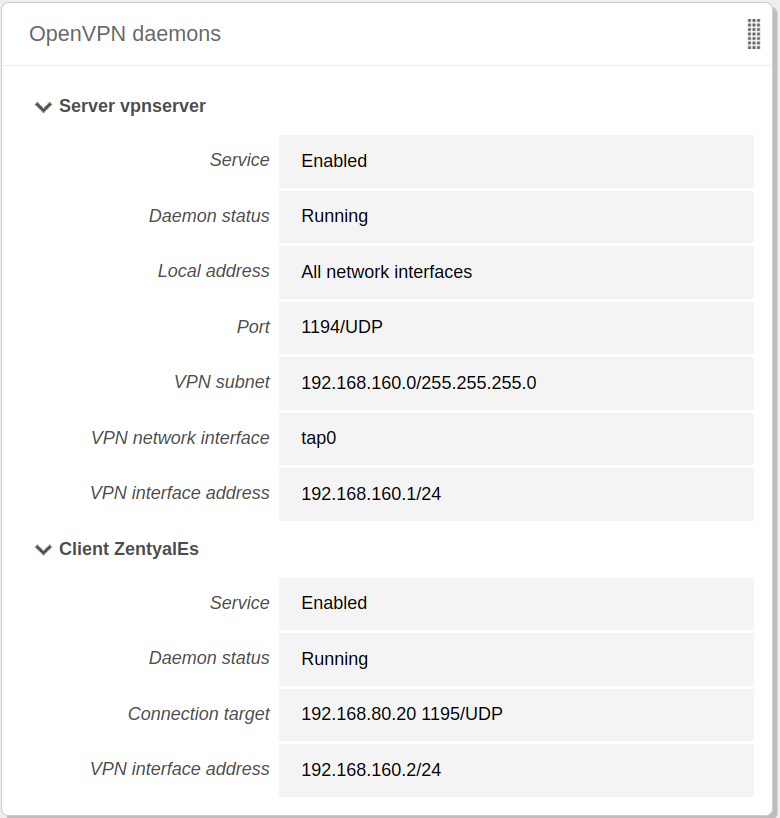
When changes are saved, you can see in Dashboard a new OpenVPN daemon on the network 2 running as a client, connected to the other eBox in the LAN 1.

When the connection is complete, the server machine will have access to all routes of the client machines through the VPN. However, the client machines will have access only to the routes that the server has advertised explicitly.
This example’s goal is to set up a tunnel between two networks that use eBox servers as gateways to an external network, so that members of both networks can connect with each other.
Access the web interface of the eBox which is going to act as server in the tunnel. Make sure the VPN module is enabled and activate it if necessary. Once you are in the VPN -> Servers section, create a new server with the following settings:
- Enable Allow eBox-to-eBox tunnels. This is the option indicating that it will be a tunnel server.
- Enter a eBox-to-eBox tunnel password.
- Finally, from the Interface to listen on select choose the external interface that the eBox client will connect to.
Once all the above steps are done you have the server running. You can verify its status in the Dashboard.
To ease the process of configuring the client, you can obtain a configuration bundle. To download it from the server, log back into the eBox web interface and go to VPN -> Servers, click on Download bundle client configuration in our server’s row. Before the download starts you have to enter some parameters in the form:
- Client type: choose eBox to eBox tunnel.
- Client certificate: choose a certificate different to the server one that is not in use in any other client either. If you do not have enough certificates, follow the steps of above examples to create a certificate that you can use for the client.
- Server address: you have to enter the address which the client will use to connect to the server. In this case, the address of the external interface connected to the network visible by both server and client will be the appropriate one.
After entering all the data press the Download button.
You download a tar.gz archive containing the configuration data required for the client.
Access the eBox server web interface that will take the role of client. Check that the VPN module is active, go to the VPN ‣ Clients section. This section is an empty list of clients. To create one, click Add client and enter a name for it. As it is unset, it cannot be enabled, so you have to return to the list of clients and configure it. Since you have a client configuration bundle you do not need to complete the data in the section by hand. Using the Upload configuration’s bundle option, you can select the file obtained in the previous step and click on Change. Once the configuration is loaded, you can return to the list of clients and enable it. For this, click the Edit icon in the Action column. A form where you can tick the Enable option will appear. Now you have a fully configured client and the only thing left is saving changes.
Once the changes are saved, the client will be active. You can check this in the Dashboard. If both client and server configurations are correct, the client will start the connection and the tunnel will be ready in a few seconds.
Now you have to check if the hosts in the server’s internal networks and in the client ones can see each other. Besides the existence of the tunnel, there are the following requirements:
- The hosts must know the return route to the other private network If, as in this case, eBox is being used as gateway, there is no need to setup additional routes.
- The firewall must allow connections between the routes for the services you want to use.
Once these requirements are met, you can test the connection. From one of the hosts on the private network of the VPN server do the following:
- Ping a host on the network of the VPN client.
- Attempt to initiate an SSH session on a host of the VPN client network.
Once you have checked this, repeat it from a host on the network of the VPN client, choosing as target a host located in the network of the VPN server.